AI Studio — logos, styles, and precision templates
AI Studio has three tools: a **logo generator** (Gemini Nano Banana — returns 4 variants), a **template style generator** (Claude Sonnet — palette + font + template recommendation), and a **precision template generator** (Premium/Agency — structurally unique template designs from a prompt + optional reference image).
The five built-in Billune templates cover most editorial invoice needs, but sometimes your brand demands something more specific — a curved header, a left accent bar, a particular colour mood that reflects an existing brand system. AI Studio exists to close that gap without you needing to be a designer.
Every tool in AI Studio consumes AI credits, which are metered per month and reset on your billing anniversary. Free plan gets 0 credits (upgrade to try), Pro gets 5, Premium 20, and Agency 50. Credits are only debited on a **successful, applied** result — a preview never charges, and if Nano Banana fails to produce a usable logo, no credit is spent.
- 01
Open AI Studio
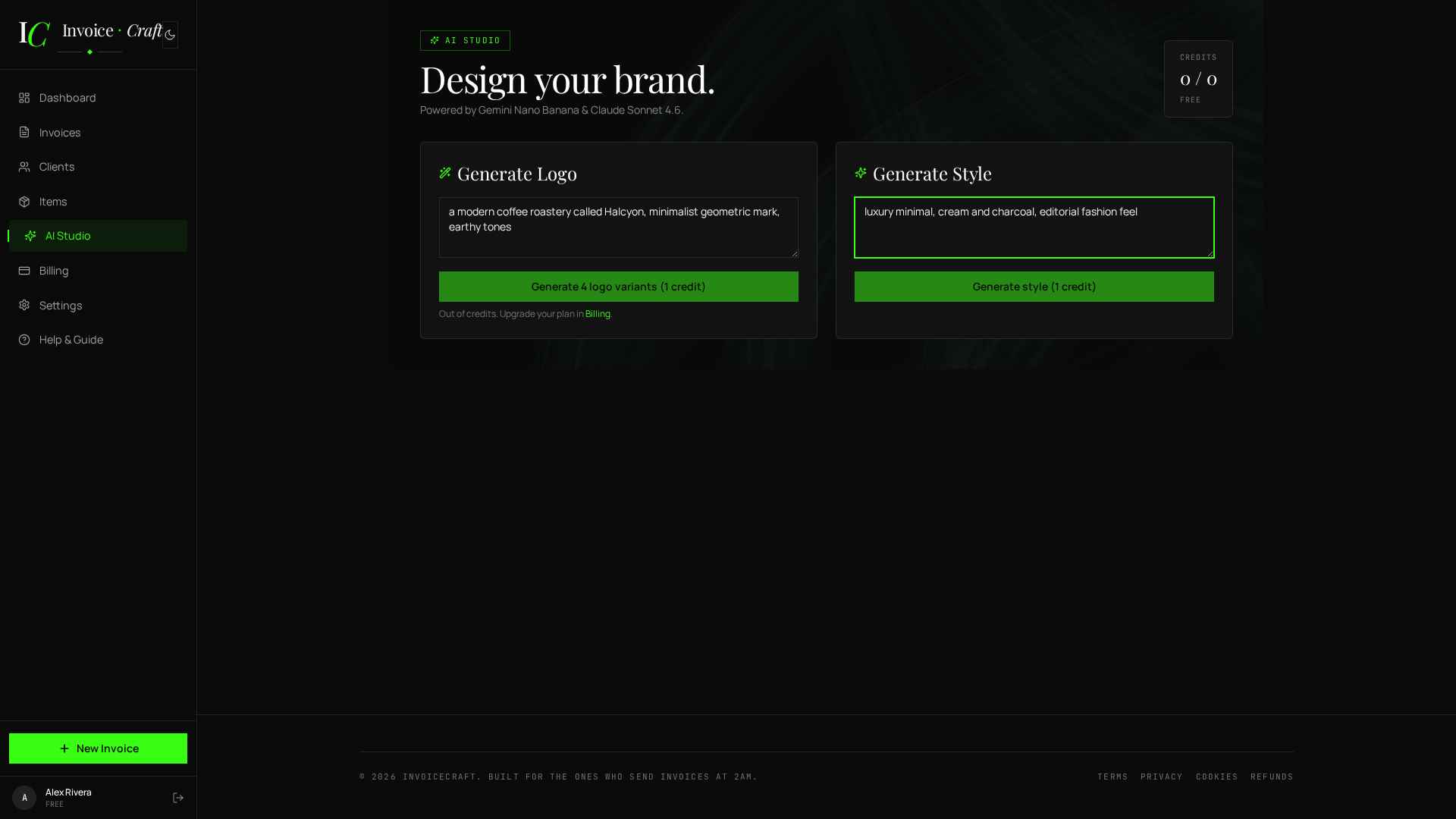
Sidebar → AI Studio. Your remaining monthly credits are shown top-right. Free tier is 0 credits — upgrade to Pro (5/mo), Premium (20/mo), or Agency (50/mo) from Billing.
- 02
Generate a logo
Type a short prompt in the Generate Logo panel — e.g. "a modern coffee roastery called Halcyon, minimalist geometric mark, earthy tones". Click Generate 4 logo variants. Takes ~20-40s. Gemini Nano Banana produces four different treatments so you can pick the one that matches your instinct, not the only option it happened to produce.
- 03
Apply it to your brand
Hover any of the 4 results and click Apply. It's saved to your branding and appears on every future invoice — no need to re-upload anywhere. If you want to iterate, generate another batch with a more specific prompt ("same style but on a warmer cream background") — the previous variants stay available until you close the page.
- 04
Generate a template style
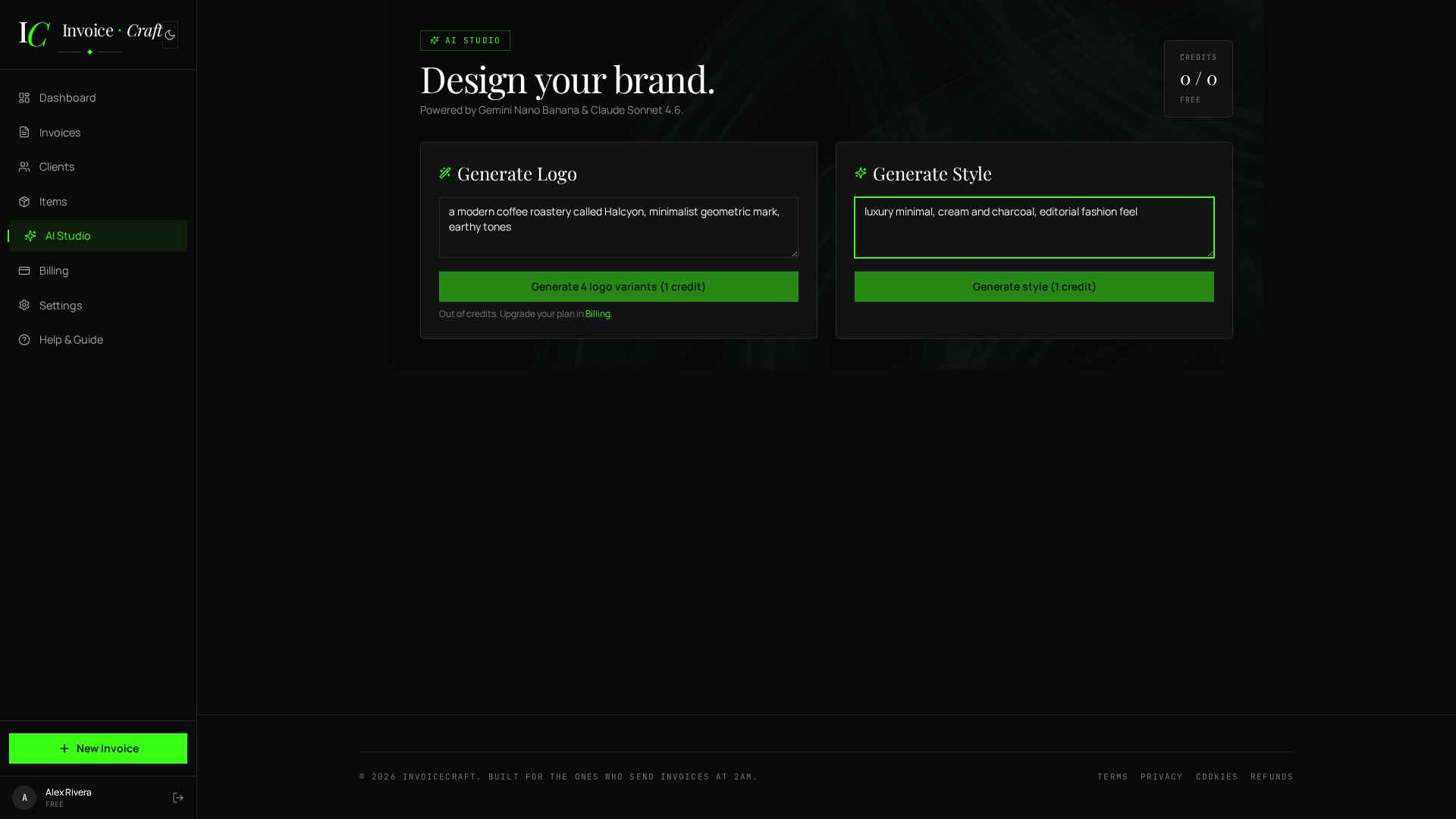
Use the Generate Style panel. Describe a vibe: "luxury minimal, cream and charcoal, editorial fashion feel". Claude returns a 4-color palette, a recommended template, and a font pairing. This costs 1 credit and produces a palette JSON — not a physical redesign — so it's fast and cheap to iterate.
- 05
Save the style
Click Apply to my brand — your accent color + default template update. New invoices inherit this style; you can still override per-invoice in the Branding tab. If you don't love the palette, generate again — since credits only deduct on Apply, browsing suggestions is free.
- 06
Precision Template Studio (Premium+)
The bottom panel — visible on Premium and Agency plans — takes a longer prompt plus an optional reference image and returns 4 structurally unique invoice designs (curved headers, split blocks, left accent bars, geometric etc.). Save any you love to your personal template library; they show up in every future invoice's template picker alongside the 5 built-ins. Cost: 5 credits per generation.
- 07
AI-edit an existing invoice
Inside any invoice, open the AI Edit tab and type plain-English instructions ("add 10% early-pay discount and change the tax rate to 18%"). Preview the changes before applying — no credit charged on preview, only on Accept. Logo-related prompts ("generate a new logo for Acme") also run in AI Edit and cost 2 credits when both a text edit + logo image are produced.