Creating, branding, sending, and tracking invoices
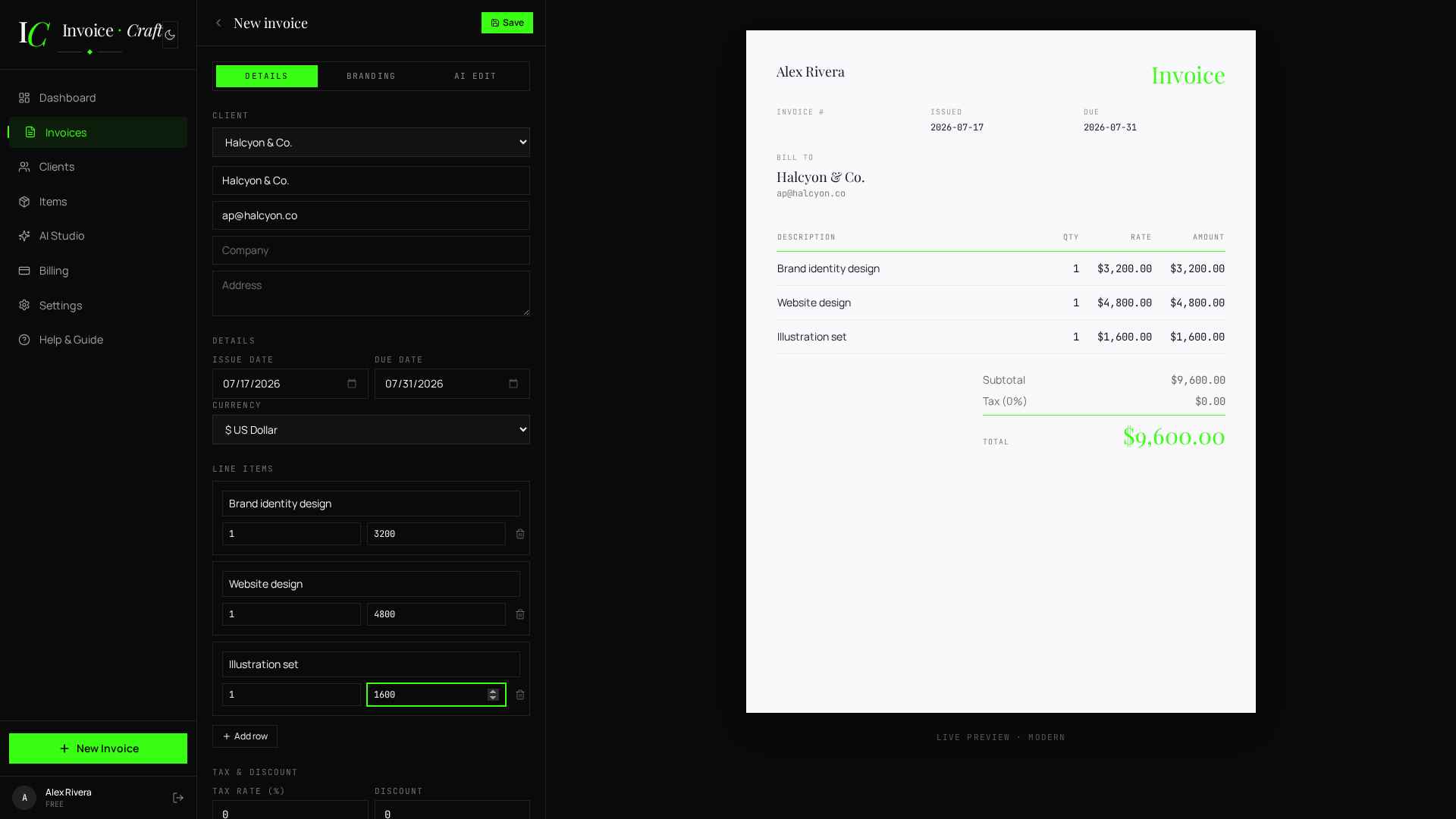
The invoice builder is a live WYSIWYG editor — edit the fields on the left, watch the invoice preview update in real time on the right. Nothing to preview separately.
The single most-used screen in Billune is the invoice builder, and we've obsessed over making it feel less like a form and more like a document — a live editorial layout on the right pane that responds to every keystroke, so you can see exactly what your client will see before it lands in their inbox.
The builder is split into three tabs — Details, Branding, and AI Edit. You'll spend 90% of your time in Details (client, line items, taxes, notes). Branding is where you swap templates, tune the accent colour, and pick a payment gateway. AI Edit is optional — describe a change in plain English and Claude does it (with a preview before saving).
- 01
Open the builder
Click + New Invoice (sidebar) or open an existing invoice from the Invoices list. The builder splits into a left editor panel and a right preview pane. The preview is not a static thumbnail — it's the actual rendered template component, so the PDF you eventually download is a pixel-accurate copy of what you see on-screen.
- 02
Fill in client + dates + currency
In the Details tab, pick a client (saved or one-off) and set the issue date, due date, and currency. All three template placeholders update as you type. Currency drives the money symbol everywhere and locks the invoice to that currency for future edits (so a client on your USD invoice never sees mixed £/$ prices).
- 03
Add line items
Each row has a description, quantity, and unit price — subtotals compute automatically. Click + Add item for extra lines, or use From library to insert a saved item (rate + description auto-fill).
- 04
Taxes and discounts
Set a tax rate (single-rate or multi-tax like India's CGST/SGST/IGST) and a discount (either percent or absolute). Everything recomputes instantly. For India users specifically, entering CGST 9% + SGST 9% renders as two labeled rows on the invoice — see the GST invoicing guide for the exact rules for intra-state vs inter-state supply.
- 05
Notes, terms, and footer
Below line items you can add notes for the client ("thanks for the project — final files delivered") and formal payment terms ("Net 30 · 1.5% interest per month on overdue amounts"). In Branding you can set a per-invoice footer (business address, tax id, contact) that appears at the bottom of every template.
- 06
Pick a template and accent
Switch to Branding. Choose Modern, Classic, Minimal, Bold or Wave, then click a color to set the accent. Preview reflects the change immediately. The accent drives every template's headings, totals rule, and Pay button color — so a single hex change re-brands the whole document.
- 07
Pick a payment gateway (per invoice)
In Branding → Actions, the Payment Gateway selector lets you pick which one gateway this invoice offers to the client — PayPal, Razorpay, or Offline (Stripe support coming soon). If you have exactly one connected, Billune auto-picks it. This per-invoice choice matters when your India-based client should pay via Razorpay UPI while your US/EU-based client should pay via PayPal — same invoice builder, different gateway per invoice.
- 08
Send by email
Click Send by email in Actions. We deliver the invoice via Resend from
invoices@billune.comwith the PDF attached and a Pay button (if online collection is on). You get an Opened badge once the client opens it, backed by a tracking pixel embedded in the email. - 09
Track and remind
In the invoices list, status chips show draft / sent / opened / paid / overdue. If a client hasn't paid by the due date, hit Send reminder — a shorter, on-brand nudge email. See the late-payment guide for what to say in reminder #1 vs #2 vs when to escalate.
