Payments overview — online, offline, and the gateway selector
Billune doesn't touch your money — you connect your own PayPal or Razorpay account, and payments go directly to it. This page covers the model; the sub-guides below cover each specific gateway. Stripe support is coming soon.
One of the earliest decisions we made when building Billune was that we would never sit in the middle of your money. Every other invoicing tool either takes a cut of your payments (implicit fee) or acts as the merchant of record (compliance nightmare when you eventually leave). Billune takes neither approach.
Instead, you connect your OWN PayPal or Razorpay account by pasting API keys from those dashboards into Billune. Your client clicks Pay on your invoice → they land on PayPal/Razorpay's checkout with YOUR business name → money settles directly into YOUR gateway account. Billune only orchestrates the checkout URL and verifies the webhook. Zero funds ever flow through our systems, and disconnecting Billune later is a one-click affair with no data captive-hold. (Stripe support is coming soon — the underlying integration is built but not yet enabled in the UI.)
- 01
Collect online vs offline
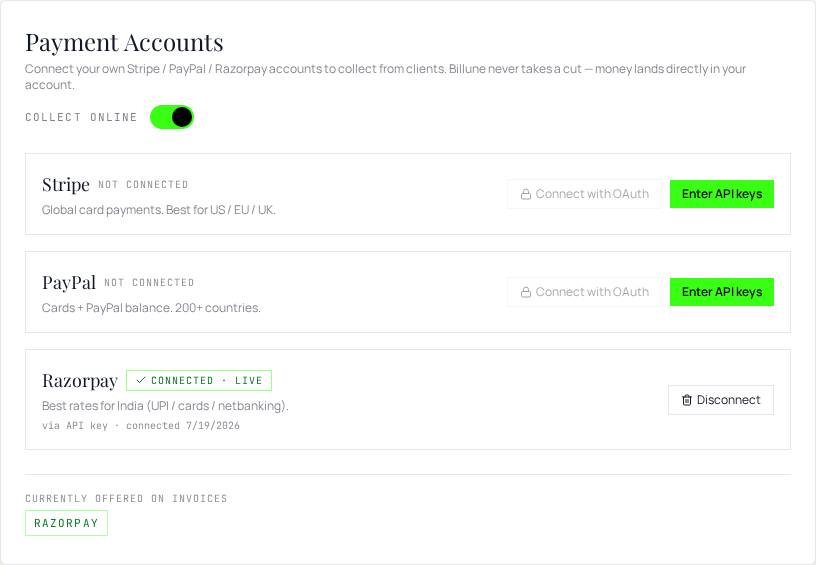
In Settings → Payment Accounts, the top toggle sets your default. Collect online shows a Pay button on invoice emails and the public pay page. Offline removes the Pay button and shows "please arrange payment directly with [business]" instead — perfect for cash / bank-transfer / cheque businesses that just want the branded PDF.
- 02
Connect at least one gateway
For online collection, connect at least one of PayPal or Razorpay in Settings → Payment Accounts. Each row has an Enter API keys button; step-by-step guides for each gateway are linked below. Keys are Fernet-encrypted at rest with a per-instance key — disconnecting soft-deletes the connected flag but preserves the encrypted secret, so reconnecting later is one click.
- 03
Pick the gateway per invoice
Every invoice's Branding → Actions panel has a Payment Gateway selector. If you have exactly one connected, Billune auto-picks it. Otherwise pick from your connected list (or Offline for that specific invoice). This is where you'd send Razorpay to your Indian client and PayPal to your US/EU client — same builder, different gateway on the way out.
- 04
How the client actually pays
Client opens the invoice email → clicks Pay Invoice → arrives at your branded public pay page → clicks the single gateway button you picked → completes checkout on the gateway (PayPal/Razorpay) → you're notified via webhook and the invoice flips to Paid.
- 05
If you disconnect a gateway later
If a client tries to pay an old invoice locked to a gateway you've since disconnected, they get the polite "please arrange payment directly" fallback — no error, no broken button. The invoice itself stays intact; you can either reconnect the gateway (one click if you haven't rotated the keys) or send a fresh invoice with a different gateway.
- 06
Billune never sees your funds
Your gateway API keys are encrypted with a per-instance key (Fernet). Billune's servers only orchestrate the checkout redirect + verify the webhook signature — money moves directly from your client to your PayPal/Razorpay account. Our subscription billing (your Billune plan) uses a completely separate set of keys and never mixes with your invoice-collection setup.

